
Creating an App
For Vendors and Tools: To begin testing out an App or make an App available in the Marketplace, create a DDx API account, request an Organizational Workspace for your tool and create an App in the MIG Console.
- Sign in or Create an Account in the MIG Console. Once your account is created, reach out to us at [email protected] or directly to our Client Success team to enable your Organizational Workspace.
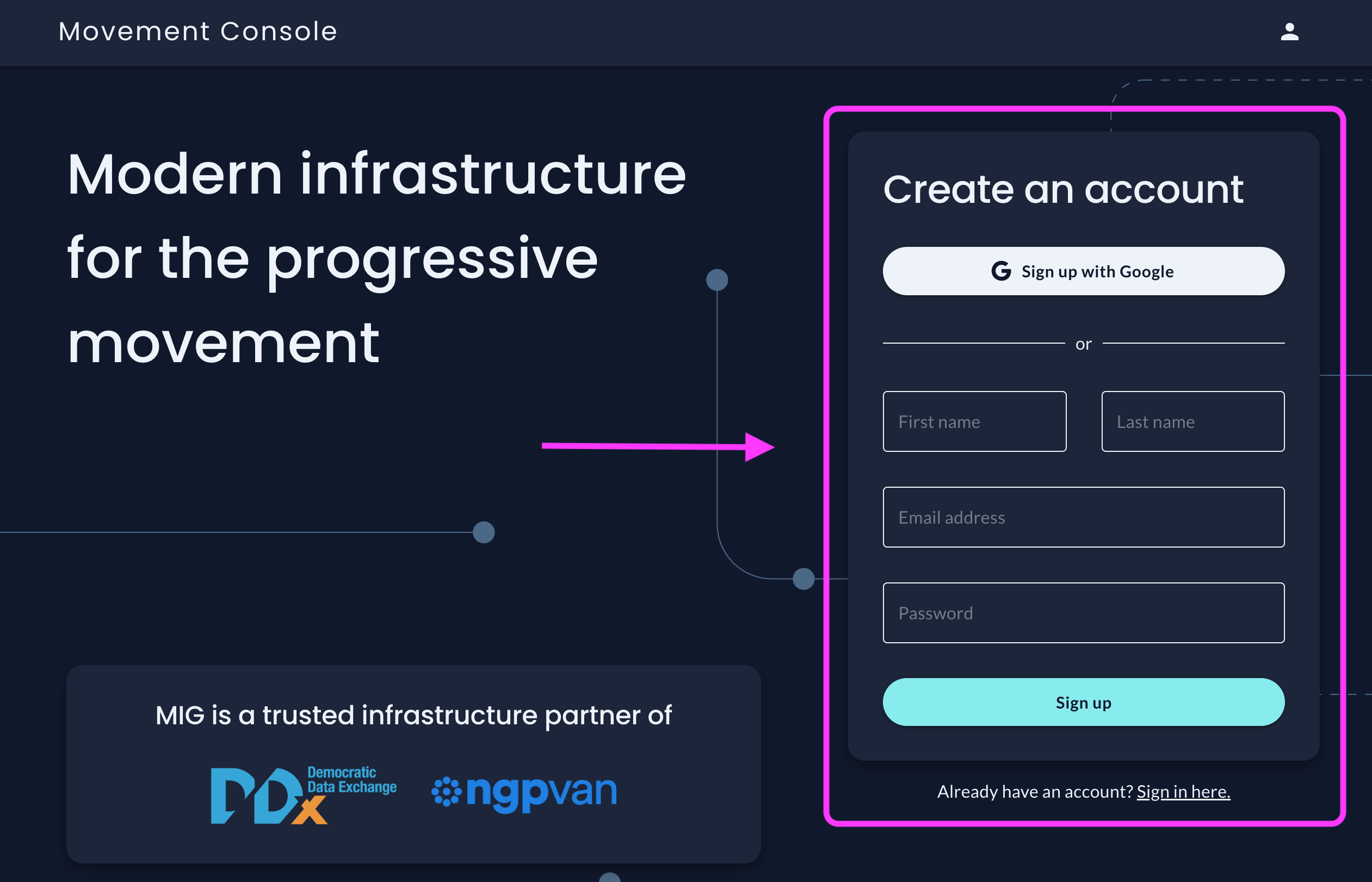
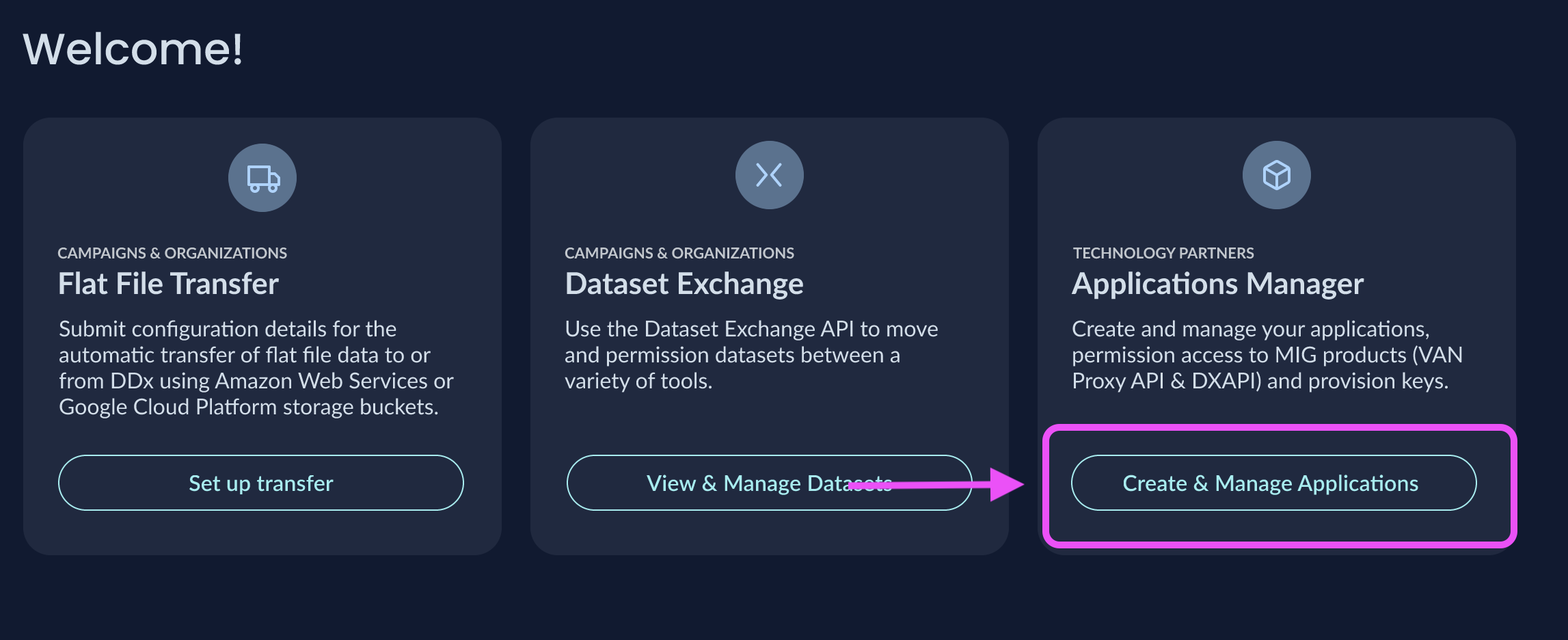
- Once the Organizational Workspace is created, the Dataset Exchange API flow will be available. Go to
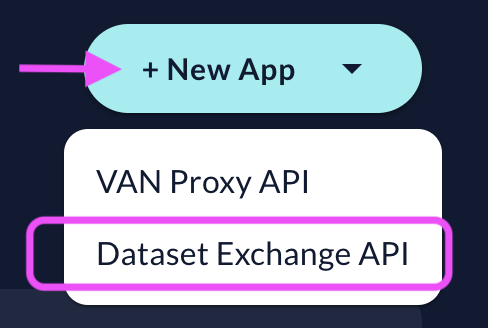
Create & Manage Applications, click+ New Appand selectDataset Exchange APIfrom the dropdown menu
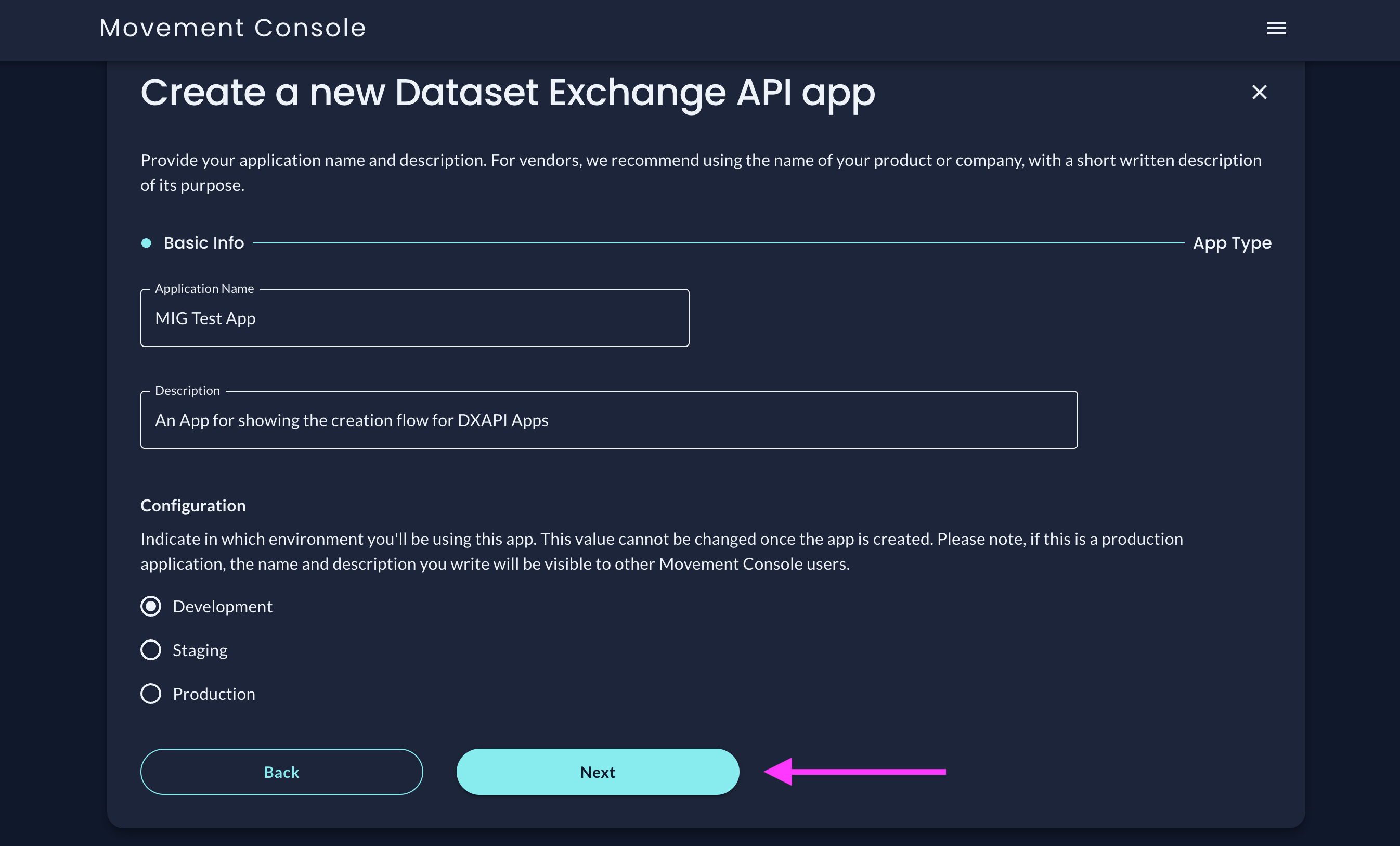
- Create the Dataset Exchange API App. An App name, a short description, and the environment in which the App will be active are all required. Please note, when this is updated to a Production application, the name and description you write will be visible to other DDx API Console users.
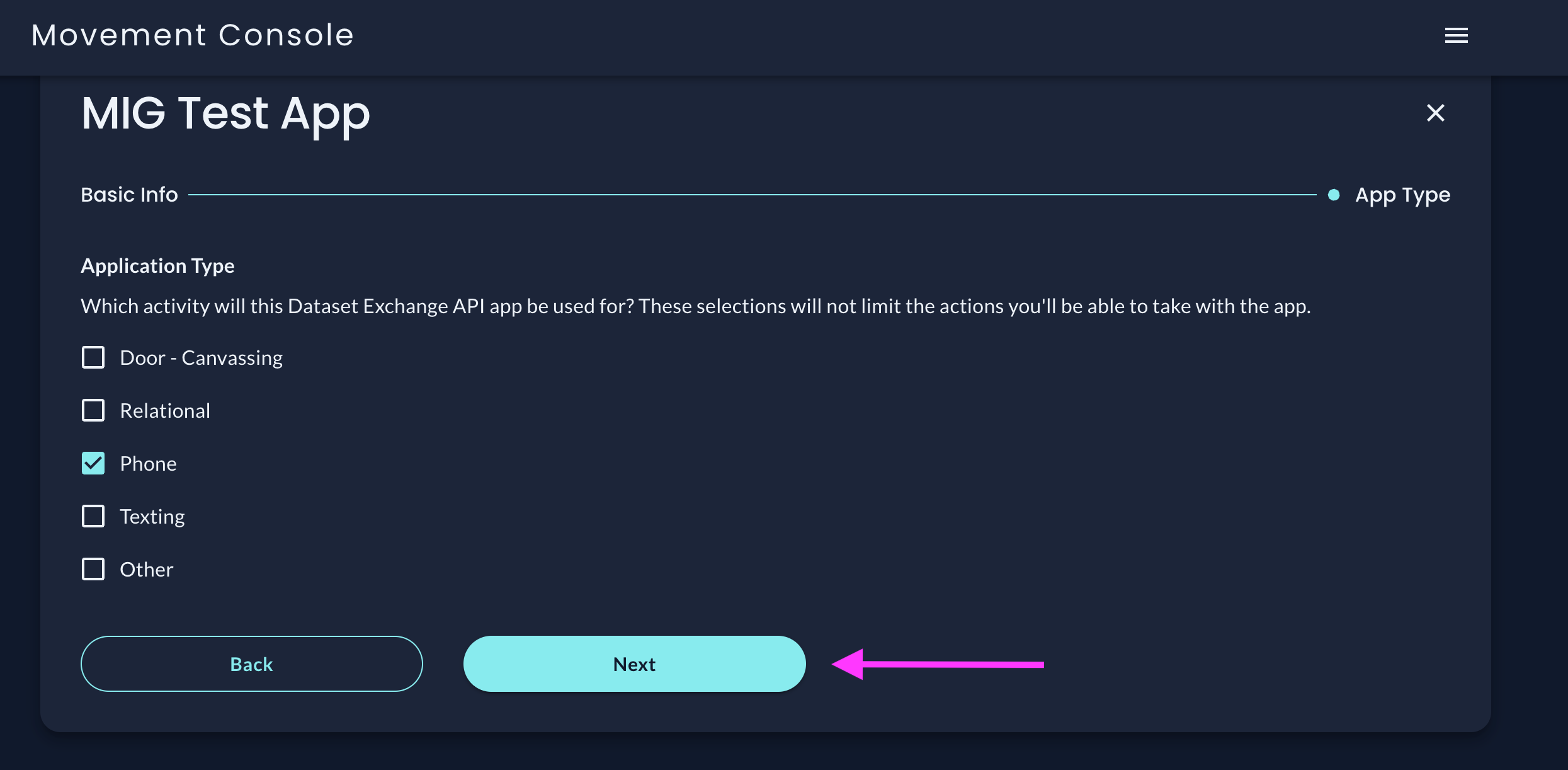
- Select an App Type. These selections will not impact access to or interactions with the Dataset Exchange API, they are informational only.
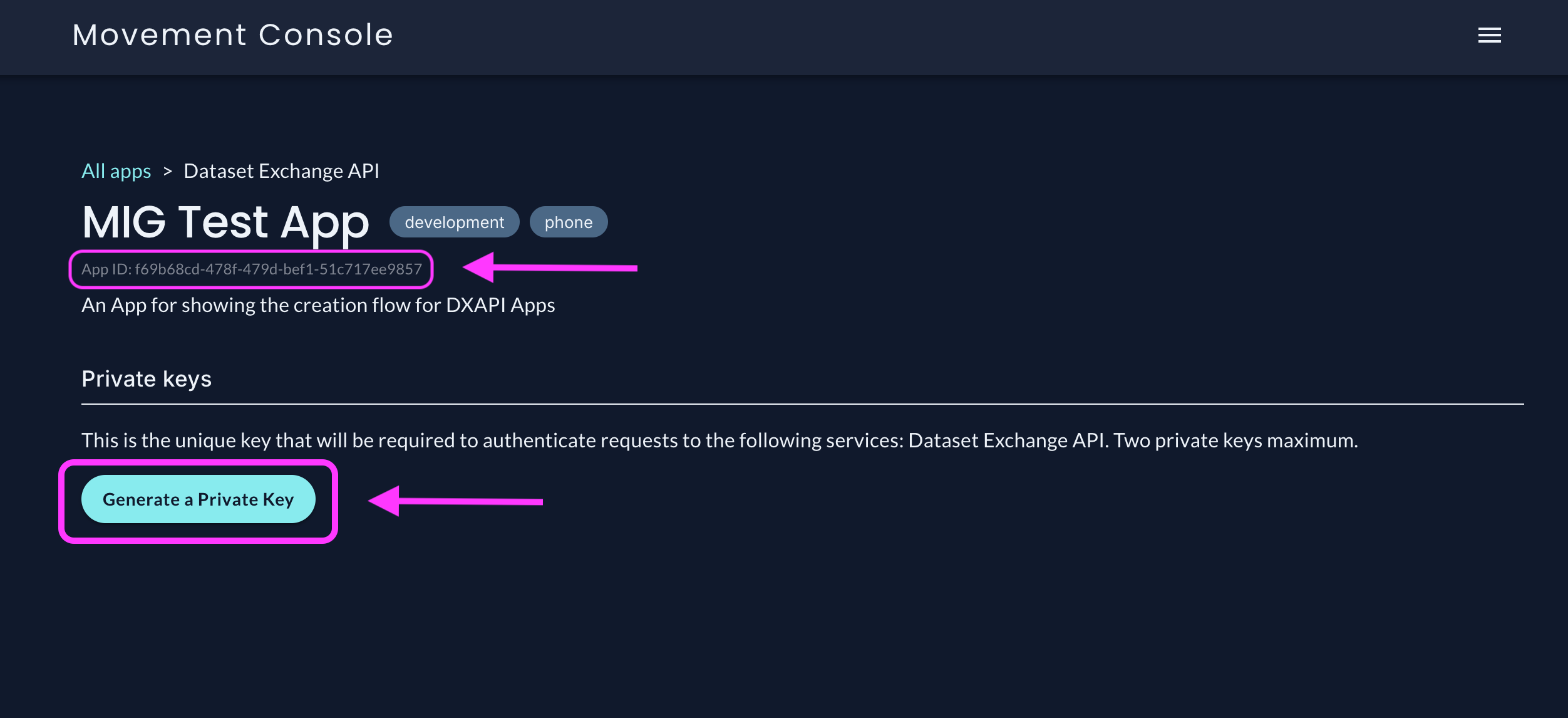
- After an App has been successfully created, Private Keys can be generated and the App ID is available to view.
About Private Keys
https://docs.movementinfrastructure.org/docs/create-an-app#private-keys
Generating Private Keys: Private Keys should be generated in the DDx API Console (see screenshot above) and stored securely.
Private Key Use: Private keys are used by dataset submitters or destinations to request for time-limited, scoped API keys.
Private Key Security: Private API Keys are secrets and should not be publicly accessible in areas such as GitHub, client-side code, etc.
To learn more about using Private Keys and generating a system-level JSON Web Token, please visit the Authentication section.
Dataset Owners, Campaigns, and Organizations should Connect to an App to complete the process for using the Dataset Exchange API.
Updated 21 days ago